Monday, 13 October 2014

make Bootable usb pendrive in just 2 min.. using cmd simple steps!!!

Bootable usb pendrive using cmd

Creating a usb pendrive using command prompt is not hard, it is one of the most common ways to create a bootable usb.
      This method does not work if your operating sistem is windows xp or windows 8 , you cannot select the primary partition in comand prompt.
       You just need to follow these simple steps:
  1. First step is to obtain the windows files from somewhere and save them to a folder in your pc. You can rip a windows dvd , or if you have the iso image file you can open it with magic disc or daemon tools or even winrar , and you need to copy the whole content to a folder anywhere in your pc , you just need to make sure you know where it is located.
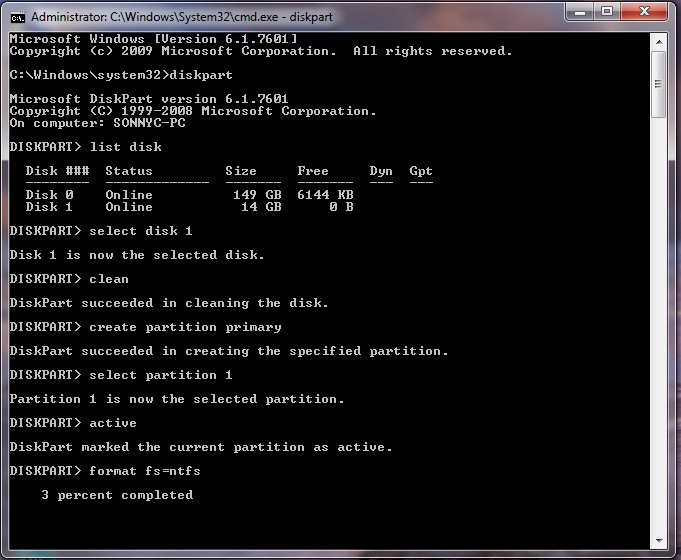
  2. Make sure your usb stick is inserted, go to start search cmd , right click the  file and select run as administrator. The command prompt will appear, now you need to write the following comands:
  3. diskpart→list disk→select disk 1(chose  the usb device, you will recognize it by its size)→clean(this will erase the usb)→create partition primary→select partition 1→active→format fs=ntfs(this will format the usb drive and will take 10-15 minutes)→Untitled 5
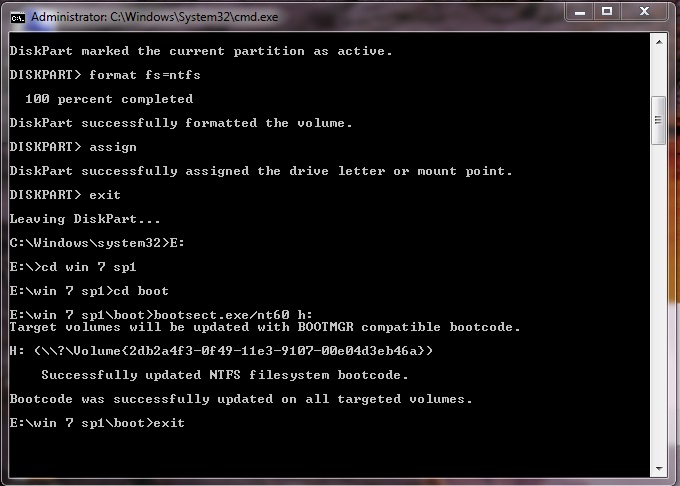
  4. After the format is done you have to continue writting  in command promt :  →assign(now you will notice that the usb drive changed its letter to (H): or (G))→exit(this command will exit the disk part function)
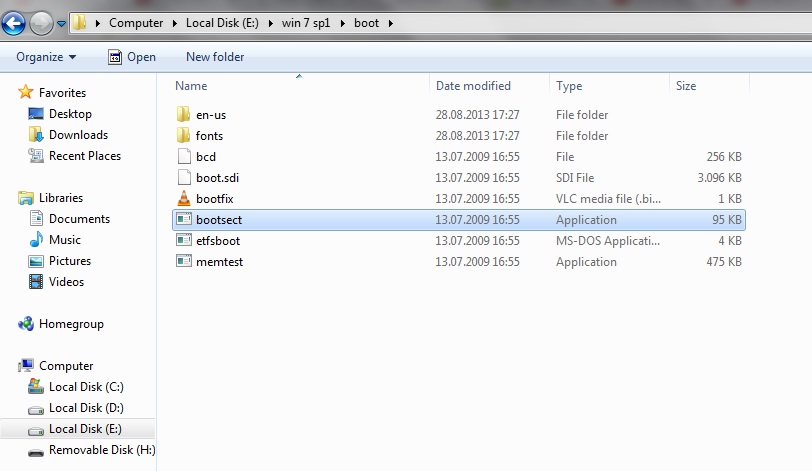
  5. Now you have to write the path to the executable file in your windows saved folder , make sure that in your windows folder you have the boot folder with the bootsect executable file.Untitled 8
  6. In my case the command goes like this:   E:→cd win 7 sp1→
           →cd boot→bootsect.exe/nt60 h:(h is the letter of the usb drive ,this comand will update the boot core)→exit (this will exit command prompt).
Untitled 6
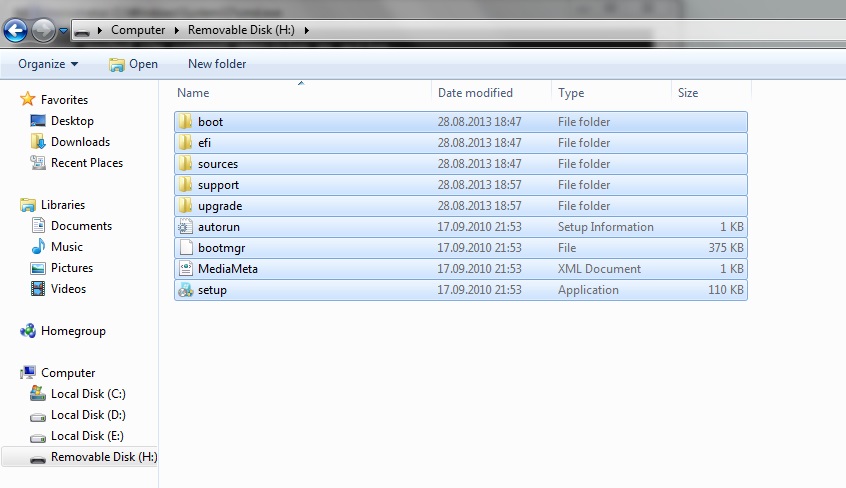
  1. Now you have to copy all the files in the windows folder to your usb drive. Untitled 7
  2. ALL DONE. You can now restart your pc and boot from the usb hard drive.

Tuesday, 7 October 2014

Windows 10 preview and 9 things u need to know!!!!

1. When can I upgrade? And how much will it cost?

Microsoft expects to release the OS sometime in 2015, after the company's Build developer conference in April. If you're feeling adventurous, you can sign up for the Windows Insider Program on October 1 to get your hands on the early (and likely buggy) preview build. The cost for the retail version has yet to be determined.

2. Windows 10? What happened to Windows 9?

Windows 7 ate 9. (I kid.) Microsoft wants us to think of the latest version as a fundamental change to how Windows works, and the company is skipping a version number to show it.
Keyboards and mice take center stage on Windows 10.

3. I've got a desktop, and a tablet. How will that work?

Windows 10 isn't just about PCs. The operating system will run on everything from desktops all the way down to smartphones, and the user interface will adjust accordingly.

4. What about apps?

Apps will be coming along for the ride too, though Microsoft hasn't explained how that's going to work. We do know that you'll be able to buy one app from the Windows Store and expect it to run on all your devices. Developers will presumably need to make universal apps that will adjust their look and feel, depending on your devices size and capabilities.

5. Those full-screen "Modern" apps were a pain. Are they still around?

Those touch-friendly, full-screen apps that debuted with Windows 8 were alternately known as the "Metro" or "Modern" design. For Windows 10, full-screen apps will be optional. Let's say you're using a convertible 2-in-1 device, like the Surface Pro 3, for example. When the keyboard is docked, you'll see the standard desktop with Windows 10's "new" old-school Start menu. Once you take the device off of the keyboard base, the OS will allow you to switch to the finger-friendly full screen mode Windows 8 users are likely familiar with.

6. I actually liked those Modern apps, and bought a few. Are they still around?

It's too soon to say how Windows 8 developers will react to the changes, but Microsoft did show some of its own full-screen Modern apps operating in a windowed mode.
Old is new again with the Windows 10 Start menu.

7. And the Start menu?

If you hated Windows 8's full-screen Start screen, you're in luck: the new Start menu harkens back to the good old days, sitting on the left side of the screen and presenting that familiar pop-up column of shortcuts. And if you liked Windows 8's approach, there's something here for you too: the new menu will incorporate Live Tiles and can be customized.

8. Never mind the apps -- I need to get things done. Any improvements on that front?

Windows 10 beefs up Snap, the function that lets you quickly arrange apps side by side, with a new quadrant layout that lets you split your display up among up to four apps. There's also support for multiple desktops (finally), so you can keep all your work apps in one place and quickly slide back to the desktop with your blogs and Reddit once your boss walks away. And then there's the task view button that lives on the taskbar. Click it, and you'll get a quick look at all of your open files, windows, and desktops.
We're going to need bigger screens
.
9. Will Windows 10 run on my machine?

It's too early to say. Windows 8.1 did introduce 64-bit computing requirements that ruled out some ancient processors, but it otherwise played well with PCs that weren't too old. Suffice to say, if you're picking up a newer device any time between now and Windows 10's release next year, you should be good to go. Once again, if you're willing to take risks, you can check out the Windows Insider Program for an early look. 

Monday, 4 August 2014

WATER COOLING for Gamer PC'S

Your CPU creates a large amount of heat, and it’s important that your computer’s cooling system is working to keep your CPU at a reasonable working temperature. In this video, you’ll learn about how heat sinks, cooling systems, and liquid cooling systems can keep your processors cool.
<<<<click here for video >>>>>

A very common method to cool the components inside of our computers is something called a heat sink. This is a copper or aluminum piece that is put on top of a very hot component. Usually these are the very hot chips that are right on our motherboards. And as they heat up, all of the heat is pulled up through this heat sink.
And because we have all these little holes that are being pulled here as the air blows through it, it is also cooling the top of the heap sink. So we’re able to dissipate that heat and get rid of it outside of our computing case. You can see that the surface area is very large. We take it from that very flat area and extend it up through these little fins, and let that air flow through.
One important piece of this is that underneath this heat sink where it is connecting to that very, very hot chip, we put a thermal grease that is designed to keep a good connection between the heat sink and the processor itself. If that particular connection is not very good, then the heat is not going to dissipate well.
And that thermal grease is designed to keep a very good connection between the heat sink and the component itself. One important safety tip is if you’re doing a lot of processing on your computer, these components are getting very hot. And because the heat sink is dissipating that heat, it also gets very hot.
So if you’re working inside of a computer that you’ve just turned off, be careful, because these heat sinks can get very, very warm to the touch. In your computer, there’s probably more than one heat sink that you have. You can see a heat sink that might be on a main processor. There’s other heat sinks that might be on a north bridge, and other components themselves may have other heat sinks.
These look kind of interesting in that they have these little fins come up, and they almost look like flames coming up through there for a little bit of a design right there on your motherboard. But they’re all performing the same function. They’re taking the heat off of these components that are on the motherboard itself, and pulling that heat right off so that the air can cool it as it goes by.
It’s also not uncommon to put heat sinks right on top of your processors, and on top of the heat sinks, you might even have fans that are pulling that air right off of the heat sink itself and sending it out of the case. So you may have fans on the case that are connected physically to the heat sinks themselves to add that much more cooling capability to those components.
Sometimes you’ll see an adapter card that has on it its own set of fans, especially if it’s something like a video card. These can be kind of bulky because you not only have the adapter card itself, but you’ve now put a fan inside of it to make sure that it gets its own cooling as well.
It’s almost always seen on these high end graphics cards, or other types of cards that are performing very, very high end processes, because those components tend to get very, very hot. If you don’t know how the air flows through your particular computer, you should take a look at it and see, even if it’s a laptop or a desktop, there on that device is a fan somewhere that’s pulling air in, and it should be exiting out another part of the case.
You’ll probably want to look in a desktop computer especially, because the layout of the motherboard becomes very important, especially the cables that you use to connect hard drives, cables that you’re using to connect back to the case itself all have an effect of the air flow through the device.
So you want to be sure that all of the fans are able to pull air through as efficiently as possible, and that none of those wires or cables are getting in the way. There’s a lot of different styles of fans, and a lot of different volume levels of fans that you can have in your case. You may not just have one.
You may have multiple fans, and they may be different sizes, but they all work together to make sure that you’re able to take the cool air from the outside and blow it through the inside of the computer to cool it off. Here’s an example of a server appliance that is using that same idea. There are fans that are pulling from the cool side and pulling that on top of and through the motherboard, and the air is exiting out these holes in the back.
And that’s an important consideration, is you want to be sure that those holes are always clear. You want to be sure there’s no dust. You want to be sure that the air is able to come into the computer and exit out as quickly as possible. If these start to get plugged, you’ll find that the temperature inside of your computer will rise very, very rapidly.
If you’re adding a fan or replacing a fan and a motherboard, you’ll find there are very standard sizes, usually something like an 80 millimeter or 120 millimeter, or different types, depending on the case that you have. These fans can also run at different speeds. Often you can plug the fan into an interface, and the motherboard sensors will determine how fast that fan needs to run based on how hot the inside of the computer case happens to be.
There are also different noise levels. So if you don’t like the fan that’s inside of your desktop computer now, you can probably find one that is much quieter at exactly the same size, that probably moves the same amount of air, and replace it, and immediately have a quieter computer. But we don’t always have to use air for our computing. We could use liquid. And these days, the liquid is a coolant that we are circulating.
In this case, you can see circulating from a connection that’s right on top of a processor, and it’s moving into a fan. It’s radiating out that heat as the air passes through, and then the liquid goes back onto that particular area to get heated up again, and the process repeats. It’s the same process we use for automobiles. It’s the same process we use for our large mainframe computers.
We’ve taken that liquid cooling and collapsed it into a size that’s small enough to put inside of our desktop computers. You usually see this on high end systems. If you’re doing a lot of gaming or a set of processes that really increases the amount of work the CPU does, maybe you need some additional cooling that the air cooling is just not going to be able to do for you.
And if you’re experimenting with your computer and you’re overclocking the CPU itself, you know that that processor is going to get warm. That may be a perfect example to, instead of using air cooling, use some type of liquid cooling for your processors.

Wednesday, 30 April 2014

AnDroID OS

Android (operating system)

From Wikipedia, the free encyclopedia
Android

Android robot.svg

Android.svg

Android 4.4.2 (Nexus 5).png
Android 4.4.2 home screen
Company / developer Google
Open Handset Alliance
Written in C (core), C++, Java (UI)[1]
OS family Unix-like
Working state Current
Source model Open source[2] and in most devices with proprietary components[3]
Initial release September 23, 2008[4]
Latest release 4.4.2 KitKat / December 9, 2013; 4 months ago[5]
Marketing target Smartphones
Tablet computers
Available in Multi-lingual (46 languages)
Package manager Google Play, APK
Supported platforms 32-bit ARM, MIPS,[6] x86[7]
Kernel type Monolithic (modified Linux kernel)
Userland Bionic libc,[8] mksh shell,[9] native core utilities with a few from NetBSD[10]
Default user interface Graphical (Multi-touch)
License Apache License 2.0
Modified Linux kernel under GNU GPL v2[11]
Official website www.android.com
Android is an operating system based on the Linux kernel, and designed primarily for touchscreen mobile devices such as smartphones and tablet computers. Initially developed by Android, Inc., which Google backed financially and later bought in 2005,[12] Android was unveiled in 2007 along with the founding of the Open Handset Alliance—​a consortium of hardware, software, and telecommunication companies devoted to advancing open standards for mobile devices.[13] The first publicly available smartphone running Android, the HTC Dream, was released on October 22, 2008.[14]
The user interface of Android is based on direct manipulation, using touch inputs that loosely correspond to real-world actions, like swiping, tapping, pinching, and reverse pinching to manipulate on-screen objects. Internal hardware—​such as accelerometers, gyroscopes, and proximity sensors— ​is used by some applications to respond to additional user actions, for example adjusting the screen from portrait to landscape depending on how the device is oriented. Android allows users to customize their home screens with shortcuts to applications and widgets, which allow users to display live content, such as emails and weather information, directly on the home screen. Applications can further send notifications to the user to inform them of relevant information, such as new emails and text messages. Despite being primarily designed for phones and tablets, it also has been used in televisions, games consoles, digital cameras, and other electronics.
Android is the most popular mobile OS and as of 2013, its devices also sell more than Windows, iOS and Mac OS devices combined.[15][16][17] In the third quarter of 2013, Android's share of the global smartphone shipment market was 81.3%, the highest ever.[18] As of July 2013 the Google Play store has had over 1 million Android apps published, and over 50 billion apps downloaded.[19] A developer survey conducted in April–May 2013 found that Android is used by 71% of mobile developers.[20] The operating system's success has made it a target for patent litigation as part of the so-called "smartphone wars" between technology companies.[21][22] As of September 2013, one billion Android devices have been activated.[23]
Android's source code is released by Google under open source licenses, although most Android devices ultimately ship with a combination of open source and proprietary software.[3] Android is popular with technology companies which require a ready-made, low-cost and customizable operating system for high-tech devices.[24] Android's open nature has encouraged a large community of developers and enthusiasts to use the open-source code as a foundation for community-driven projects, which add new features for advanced users[25] or bring Android to devices which were officially released running other operating systems.

History

Android, Inc. was founded in Palo Alto, California in October 2003 by Andy Rubin (co-founder of Danger),[26] Rich Miner (co-founder of Wildfire Communications, Inc.),[27] Nick Sears[28] (once VP at T-Mobile), and Chris White (headed design and interface development at WebTV)[12] to develop, in Rubin's words "smarter mobile devices that are more aware of its owner's location and preferences".[12] The early intentions of the company were to develop an advanced operating system for digital cameras, when it was realised that the market for the devices was not large enough, and diverted their efforts to producing a smartphone operating system to rival those of Symbian and Windows Mobile.[29] Despite the past accomplishments of the founders and early employees, Android Inc. operated secretly, revealing only that it was working on software for mobile phones.[12] That same year, Rubin ran out of money. Steve Perlman, a close friend of Rubin, brought him $10,000 in cash in an envelope and refused a stake in the company.[30]
Google acquired Android Inc. on August 17, 2005; key employees of Android Inc., including Rubin, Miner, and White, stayed at the company after the acquisition.[12] Not much was known about Android Inc. at the time, but many assumed that Google was planning to enter the mobile phone market with this move.[12] At Google, the team led by Rubin developed a mobile device platform powered by the Linux kernel. Google marketed the platform to handset makers and carriers on the promise of providing a flexible, upgradable system. Google had lined up a series of hardware component and software partners and signaled to carriers that it was open to various degrees of cooperation on their part.[31][32][33]
Speculation about Google's intention to enter the mobile communications market continued to build through December 2006.[34] The unveiling of the iPhone, a touchscreen-based phone by Apple, on January 9, 2007 had a disruptive effect on the development of Android. At the time, a prototype device codenamed "Sooner" had a closer resemblance to a BlackBerry phone, with no touchscreen, and a physical, QWERTY keyboard. Work immediately began on re-engineering the OS and its prototypes to combine traits of their own designs with an overall experience designed to compete with the iPhone.[35][36] In September 2007, InformationWeek covered an Evalueserve study reporting that Google had filed several patent applications in the area of mobile telephony.[37][38]

Eric Schmidt, Andy Rubin and Hugo Barra at a press conference for the Google's Nexus 7 tablet.
On November 5, 2007, the Open Handset Alliance, a consortium of technology companies including Google, device manufacturers such as HTC, Sony and Samsung, wireless carriers such as Sprint Nextel and T-Mobile, and chipset makers such as Qualcomm and Texas Instruments, unveiled itself, with a goal to develop open standards for mobile devices.[13] That day, Android was unveiled as its first product, a mobile device platform built on the Linux kernel version 2.6.25.[13][39] The first commercially available smartphone running Android was the HTC Dream, released on October 22, 2008.[14]
In 2010, Google launched its Nexus series of devices – a line of smartphones and tablets running Android operating system, and built by a manufacturing partner. HTC collaborated with Google to release the first Nexus smartphone,[40] the Nexus One. The series has since been updated with newer devices, such as the Nexus 5 phone and Nexus 7 tablet, made by LG and Asus respectively. Google releases the Nexus phones and tablets to act as their flagship Android devices, demonstrating Android's latest software and hardware features. On March 13, 2013, it was announced by Larry Page in a blog post that Andy Rubin had moved from the Android division to take on new projects at Google.[41] He was replaced by Sundar Pichai, who also continues his role as the head of Google's Chrome division,[42] which develops Chrome OS.

Monday, 21 April 2014

How to Permanently Delete a Facebook Account

How to Permanently Delete a Facebook Account

Steps

  1. Save any data you need. Before you delete your account, save any photos and contact information you need from your account. You will lose access to all of this when you delete your account.
    • You can download a copy of all of your Facebook data through the Account Settings. Click on the Gear icon in the upper-right corner to access it. Click the link that says “Download a copy of your Facebook data”.

  2. Clear your Facebook history. You can open the Activity Log to undo all of your previous actions on Facebook, such as liking posts and comments you’ve made. This will help ensure that as little data about you remains as possible after your account is deleted.
    • To access the Activity Log, click the Privacy button in the top-right corner. Select “Who can see my stuff?” Click the link for the Activity Log. Here you can choose which parts of your activity you would like to delete.

  3. Visit the Delete Account page. This page cannot be accessed through Facebook unless you search for it. You can also follow this link. Click the “Delete my Account” button to start the account deletion process.[1]
  4. Enter your password and the CAPTCHA. Once you have entered these, press “Okay” to permanently delete your account. You will need to wait 14 days for the deletion to take effect.
    • You need to have access to your Facebook account in order to delete it this way. If you can’t remember your password, use Facebook’s password reset service before deleting your
  5. Try a temporary deactivation instead of deleting your account.
    • Click the Settings icon and select Account Settings.

    • Open the Security section from the left menu.

    • Click the “Deactivate your account” link

    • Fill out the form for deactivating your account. You will still be able to be linked in posts and messaged, though you will not receive notifications about it.


Tips

  • Download and back up any photos or other information you want to save before deleting your account. To find the "download" option go to "General Account Settings">"Download a copy". This will allow you to download a copy of your data directly from Facebook.

Wednesday, 9 April 2014

10 Fascinating Facts about :: INTEL ::::::

10 Fascinating Facts INTEL 

Sunday, 6 April 2014

10 Best Tools For Photo Editing EASY TO USE

With modern cameras, digital photography can seem very easy with the basic models producing clear and crisp photos. However, there are some issues, such as white balance, lighting and red-eye among others that may not produce the image you’d desire. This is why it’s a good idea to have a photo editor which can help resolve such issues.
You’d also want your photos to stand out but don’t want to splurge money on some expensive software. If so, keep your worries away as there is no dearth of such free tools-both Web-based and installed software-which can do a lot of photo-editing besides enhancement without burning a hole in your pocket.
Check out this amazing collection of 10 best free photo editing software. Click on each link for getting the full details.

1. GIMP

gimp-625x300 (1)
GIMP is often regarded as the best alternative to Photoshop. It’s an open-source application that depends on a bunch of willing developers who are responsible for the maintenance and improvement of the product. The software is available for PC and Mac. With this tool, you can get editing done on the professional level besides some great re-touching tools. It’s ideal for designers who are incapable of splurging money on Adobe or even for those who don’t want higher expenses.
After starting the program, you’ll find a window that shows the image along with separate windows for proper organization of the layers and toolbox. GIMP resembles Photoshop in many ways-however, it has a unique feel and look.

2. Google’s Picasa

download
Google’s Picasa is a free software which is widely used. It has a thrilling effect with its smoothness and the way with which it allows you to import and regulate your digital images besides rendering them to perfection. It’s available for Linux, Macs and Windows.  Picasa is an excellent photo application, with the new version adding a host of creative new effects.
Its effects, geo-tagging, text overlay, face recognition and user-friendly options are all adorable. The continuation of Picasa by Google is thought by many to be a desktop application.

3. Photoscape

PhotoScape02
Photoscape is a free easy and fun photo editing software that allows you to fix your photos besides enhancing them. On digging deeper into this wonderful tool, you’ll soon realize why so many readers recommend photoscape as a photo editing software. It has plenty of features, yet is easy to use.
The software provides various modules like editor, viewer, Raw converter, batch processor, print layout tool, file renamer, color picker and screen capture tool among others. The program is restricted to working with a single document at a time. Hence, if you want to change an image on which you are working, you’ll have to save the current file and close it.

4. Light Box Image Editor

LBXScrn
LightBox free image editor is a powerful and simple editor used to enhance your images and make them look outstanding with some professional touch. It has an appealing user interface which is straight forward and simple. It also offers perceptive slide-bar attunements for the images.
Make a comparison of your pictures before and after the corrections with split screen views. The software has simple tools for correction of red-eye, crop, sharpen, print, add borders and re-size. You can also move to the paid version if you want where you can get some very handy extras.

5. Paint.Net

PaintNet-580-90
Paint.Net is a pixel-based image editor which can be used on PCs running Windows. It has become a very powerful application and offers a wide range of features and tools for enhancement of your images along with creative editing. It’s powerful with respect to image editing basics and has options to rotate or resize your photos besides some special effects.
Paint.Net, however, does not have adjustment layers nor any feature of native layer mask. This indicates that you won’t find easy options for editing that is non-destructive.

6. Serif Photo Plus

photoplus-625x300
Serif Photo Plus was created by Serif as a free version from its premium software suite so that users could have access to fundamental tools for editing their photos. All the basics of image editing have been covered by this software. It has tools that allow you resize, cut down red-eye and apply filters and effects. However, since it lacks some essential features of the premium version, it has some amount of restrictions-the first one being a dearth of keyboard shortcuts.
Nonetheless, Serif Photo Plus can be used by anyone wanting to make his image standout. It’s ideal for graphic design jobs and has an intuitive interface.

7. iPhoto ’11

339426-events
The new iPhoto ’11 appears pretty amazing-which is something great for photographers wanting to make the most out of their pictures. It allows you to do some great things with the aid of those pixels. With iPhoto’11, you can import, arrange, enhance and produce classy output from your digital images.
The software allows you to browse albums, events, projects, places and faces. It shares albums and photos easily to Flickr and Facebook, even though you don’t get galleries hosted by Apple.

8. LazPaint

293821
LazPaint is a free and open-source raster image editor targeted at users who want a relatively easily accessible application compared to GIMP. The latter may offer a wide range of strong features but is associated with a steep learning curve which is often a hindrance for inexperienced users.  This indicates there are people who want a less powerful but a user-friendly application and LazPaint does exactly this.
The application is at present offered for Linux and Windows machine. It is, however, not a strong tool for image enhancement and adjustment.

9. Phoxo

PhoXo-580-90
Phoxo is a free and robust image editing software, which is tiny, speedy, user-friendly and can be described as a mini Photoshop. Some essential features of this software include undo, layers, batch processing and around 50 special effects. It also has handy and strong tools for crop, selecting, painting, navigation, measuring and retouching. Text effects can be easily added to images like ripple text, shadow text and gradient color text.

10. Funny Photo Maker

Funny-580-90
With Funny Photo Maker , you can have your face attached to the body of a celebrity or combine with attractive natural sceneries. You can also get your family picture on a photo calendar or photo billboard.  It does not have smart selection tools or layer support but still you can achieve a scintillating range of effects.
Some options of this free software include transforming still images into animations, adding snow or rain to an image, applying some elegant frames and transforming your images into a collage.

click on software name for download >>>>>>>
if u like subscribe and share to get daily awesme news......>>>>>>